> For the complete documentation index, see [llms.txt](https://xreal.gitbook.io/nrsdk/llms.txt). Markdown versions of documentation pages are available by appending `.md` to page URLs; this page is available as [Markdown](https://xreal.gitbook.io/nrsdk/v2.1.0/nrsdk-fundamentals/xreal-devices/controller.md).
# Controller
This guide will show you how to use the **XREAL Light controller** and **XREAL phone controller**. The tutorial will demonstrate how to create apps using controllers as an interaction model.
Controllers provide a simple way for users to navigate in mixed reality. In the latest version, NRSDK supports two types of controlling methods: **XREAL Light controller** and **XREAL phone controller**. The XREAL Light controller can be paired with a XREAL Light computing unit or a mobile phone through Bluetooth. The XREAL phone controller is only available when using the phone as XREAL Light's computing unit.
## How to Use Your Phone as a Controller
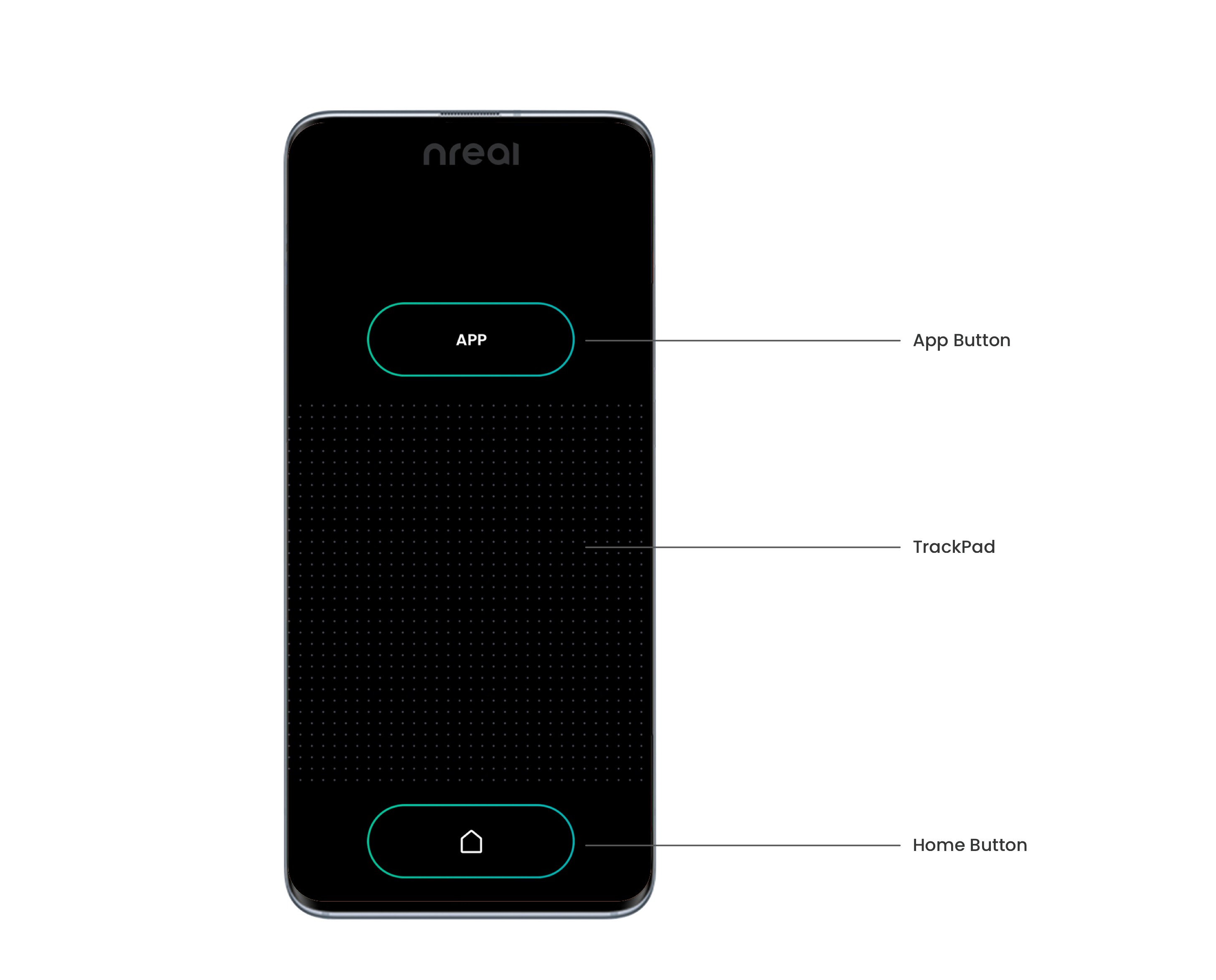
| Controller Features | Description |
| ------------------- | ----------------------------------------------------------------------------------------------------------------------------------------------------- |
| 3DoF Tracking | 3 degrees of freedom |
| Touchpad | **Press** = Trigger Button. Can detect touching and clicking. Customizable for your app, e.g. scrolling. |
| App Button | **Press and hold** to recenter your controller. **Press** can be customized for your app, e.g. opening an in-app menu or performing a special action. |
| Home Button | **Press and hold** to open Exit App Window. **Press** can be customized for in-app action, e.g. return to the previous step. |
## How to Use the XREAL Light Controller
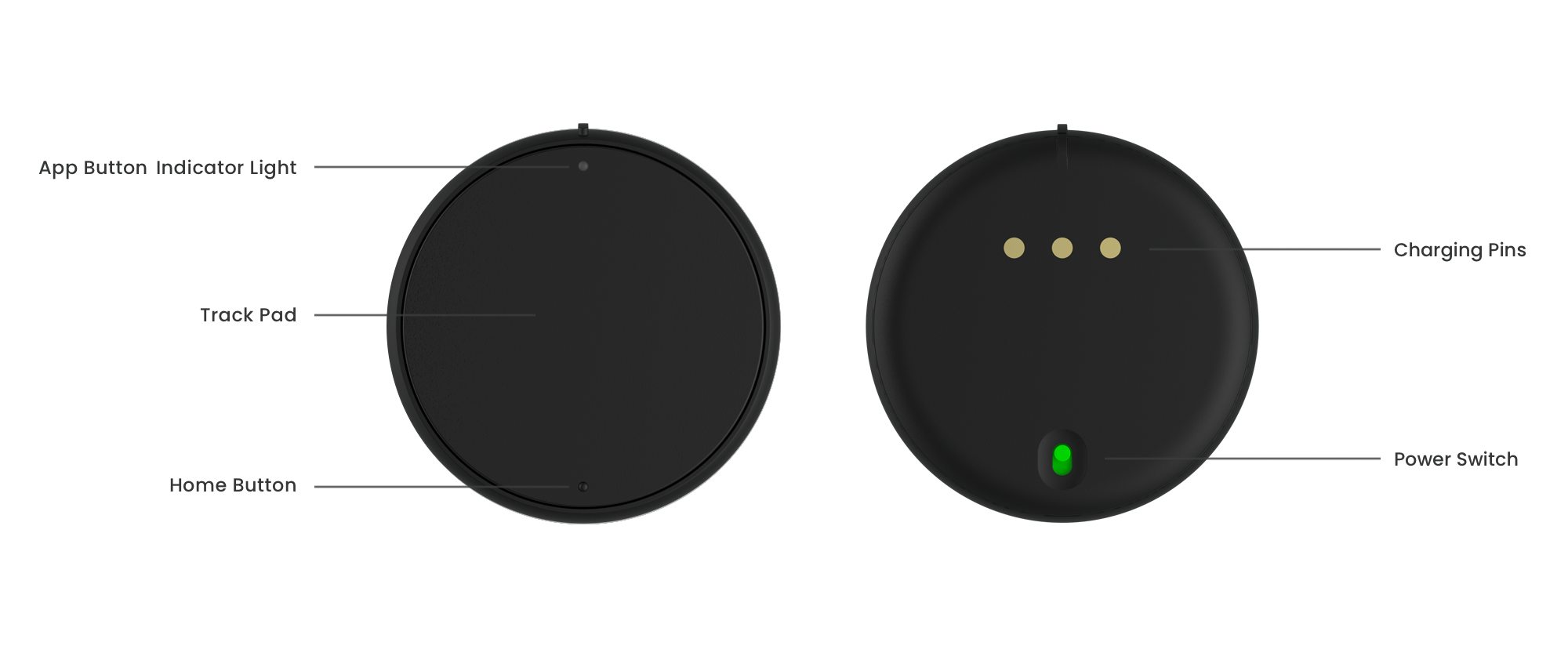
**On the front**
| Controller Features | Description |
| ------------------- | ---------------------------------------------------------------------------------------------------------------------------------------------------------------------------------------------------------------------------------------------------------------------- |
| 3DoF Tracking | 3 degrees of freedom |
| Touchpad | **Press** = Trigger Button. Can detect touching and clicking. Customizable for your app, e.g. scrolling. |
| App Button | **Press and hold** to recenter your controller. **Press** can be customized for your app, e.g. opening an in-app menu or performing a special action. ( **Pay attention:** For XREAL Light Controller, pressing the App Button equals to pressing the Touchpad Button) |
| Home Button | **Press and hold** to open Exit App Window.\ **Press** can be customized for in-app action, e.g. return to the previous step. |
| LED Light | Display controller status
|
* **On the back**
| Controller Features | Description |
| ------------------- | ------------------------------------------------------------------------------------------------------------------------------------------------------------- |
| Charging pins | The three bottom-facing charging pins connect the controller with the computing unit. It is also used to send data from the computing unit to the controller. |
| Power Switch | The XREAL Light controller on/off switch is below the charging spots. Green means the power is on, and red means the power is off. |
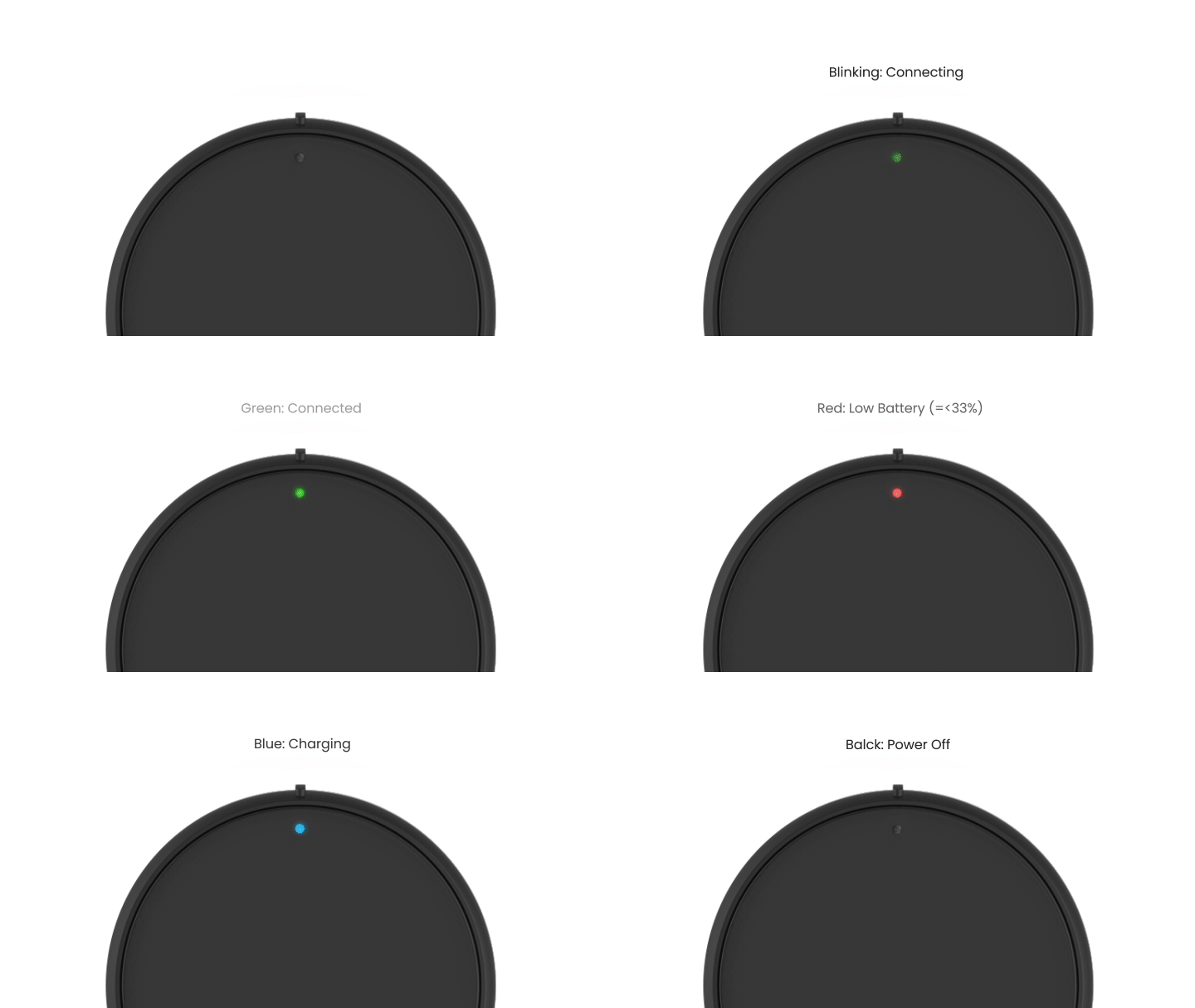
* XREAL **Light Controller LED Guide**
See **LED demo** below:
* **Connecting the** XREAL **Light Controller**
1. Make sure the Bluetooth on your Neal Light computing unit/or Android mobile phone is on. (The Bluetooth on XREAL Light computing unit is on as default.)
2. Turn the XREAL Light controller power switch on. Long press the touchpad until the green light starts blinking.
3. Put the XREAL Light controller on the computing unit, and they will be paired automatically.
4. If pairing is successful, the LED will stop blinking and become solid green. If you cannot complete this step, remove all other controllers in the Bluetooth record list and try again.
* **Charging the XREAL Light Controller**
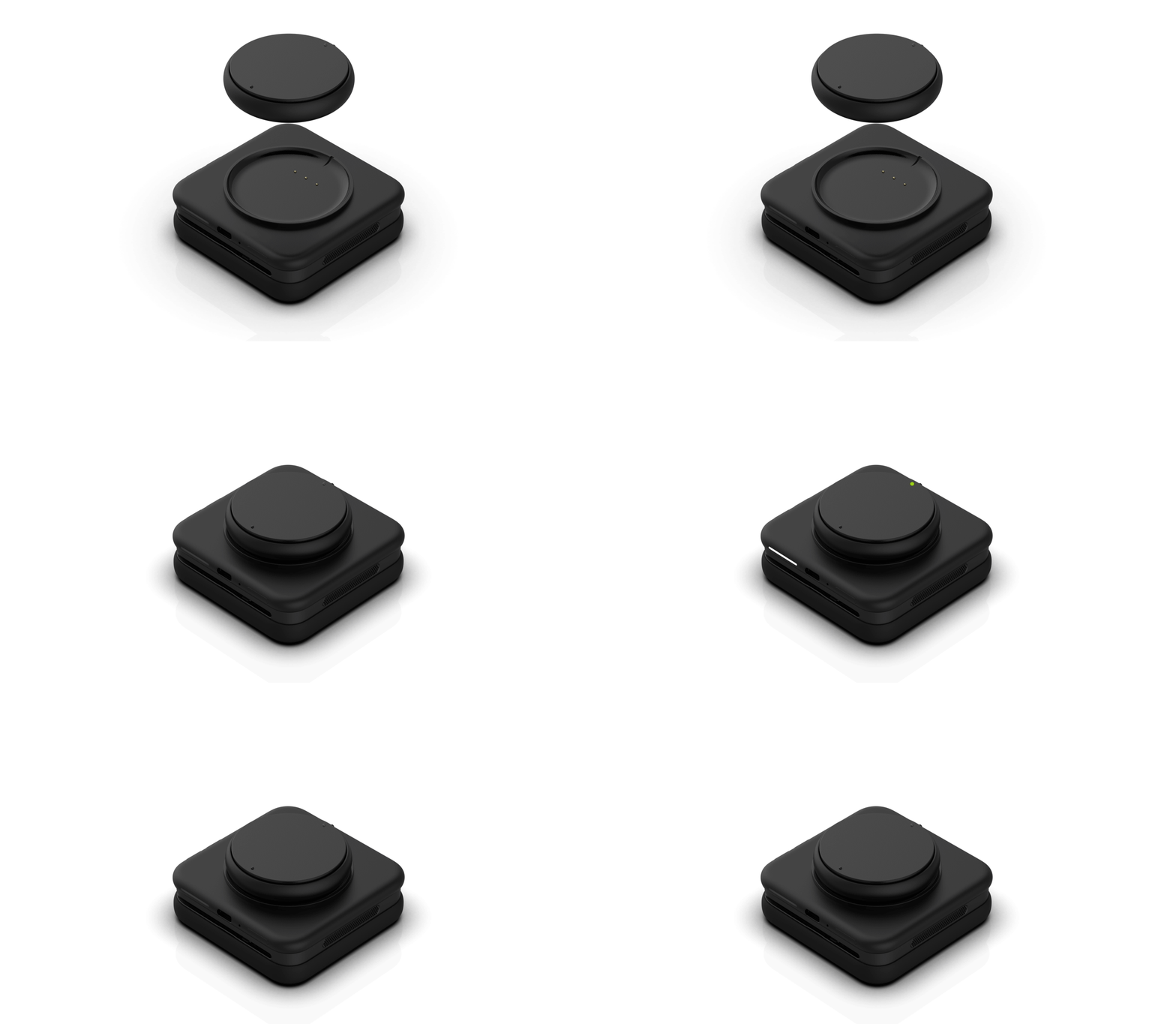
Magnetically attach to the XREAL Light computing unit. Battery power will be shared between the two whether the controller is on or off.
*The lithium battery in the controller is not removable. Please do not attempt to open the controller. Damage caused this way cannot be fixed.*
Please refer to the following sections to start developing with XREAL controller in Unity:
{% content-ref url="/pages/xM1PARLOYRYnbGxWv6fM" %}
[Input and Camera](/nrsdk/v2.1.0/development/input-and-camera.md)
{% endcontent-ref %}
{% content-ref url="/pages/WAbXomXzQS6266hzYyVK" %}
[Interact with Unity UI (Tutorial)](/nrsdk/v2.1.0/development/input-and-camera/interact-with-unity-ui-tutorial.md)
{% endcontent-ref %}
{% content-ref url="/pages/pcs3KCP0Uqb70lY7snmA" %}
[Customize Controller UI](/nrsdk/v2.1.0/development/input-and-camera/customize-phone-controller.md)
{% endcontent-ref %}
---
# Agent Instructions
This documentation is published with GitBook. GitBook is the documentation platform designed so that both humans and AI agents can read, navigate, and reason over technical content effectively. Learn more at gitbook.com.
## Querying This Documentation
If you need additional information that is not directly available in this page, you can query the documentation dynamically by asking a question.
Perform an HTTP GET request on the current page URL with the `ask` query parameter, and the optional `goal` query parameter:
```
GET https://xreal.gitbook.io/nrsdk/v2.1.0/nrsdk-fundamentals/xreal-devices/controller.md?ask=&goal=
```
`ask` is the immediate question: it should be specific, self-contained, and written in natural language.
`goal` is optional and describes the broader end goal you are ultimately trying to accomplish on behalf of the user. GitBook uses it to tailor the answer towards what is most useful for that goal.
The response will contain a direct answer to the question and relevant excerpts and sources from the documentation.
Use this mechanism when the answer is not explicitly present in the current page, you need clarification or additional context, or you want to retrieve related documentation sections.